 Wishlist


Quick answer: what you need and the sensible order
If you want to build a gaming setup from scratch, first decide your primary use (competitive FPS, immersive AAA, streaming), set a realistic budget, then pick core hardware (PC or console + monitor) before choosing the desk, chair, and peripherals. That sequence keeps performance, ergonomics, and space aligned so you avoid costly mismatches.
Plan the result: how you want to play and where
Start with three clear decisions: which games you play, whether you’ll stream or record, and what room you’ll use. Competitive players need high refresh-rate monitors and low-latency networking; single-player and AAA fans prioritize GPU power and immersive audio. Measure the room and the desk footprint you can fit—wall, corner, or L-shaped—and note outlets, natural light, and noise sources.
Set a realistic budget with priorities
Split money into three buckets: core hardware (40–55%), desk and chair (20–30%), peripherals and extras (20–30%). If you’re building a gaming PC, most performance comes from GPU and CPU—allocate more there. If buying a console, spend on display and audio instead. Keeping priorities prevents over-spending on flashy RGB while skimping on ergonomics.
Choose your core hardware first: PC/console, monitor, and GPU/CPU
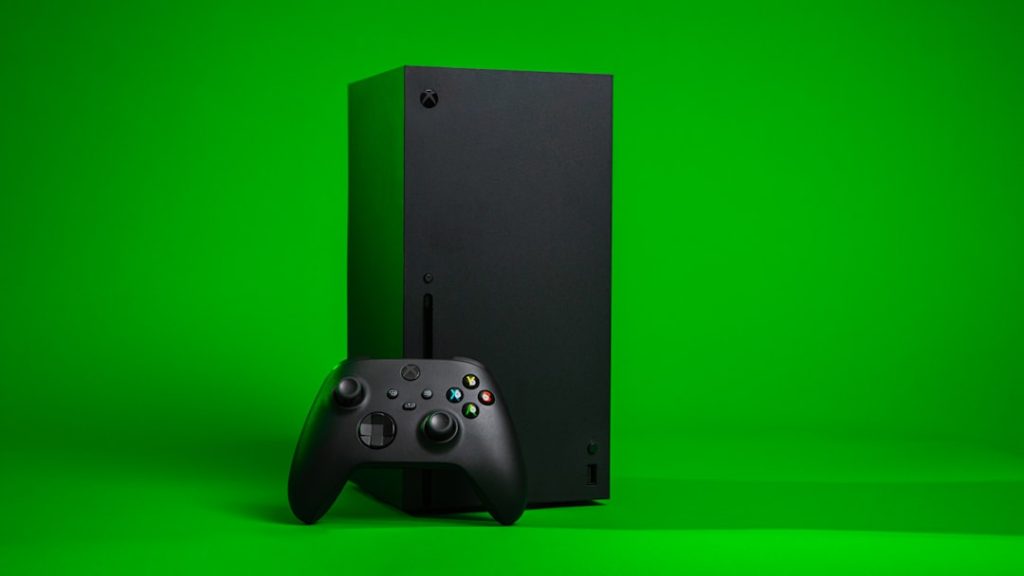
Decide platform: a PC build lets you tune components; consoles are simpler but make monitor and audio choices more important. For PCs, pick a GPU and CPU that match your target resolution and frame-rate. For example, target 1440p/144Hz for a balance of detail and responsiveness or 1080p/240Hz for competitive play.
After core hardware, choose a monitor that supports your target refresh rate and resolution and has low input lag. Then pick storage (NVMe SSD for OS and games), at least 16GB RAM, and a quality power supply sized for future upgrades. If you’re uncertain about components, start with a balanced prebuilt or console and upgrade peripherals first.
Pick the desk and chair that make long sessions sustainable
Ergonomics matters. Choose a desk deep enough for keyboard and mouse (at least 24–30 inches depth for two monitors) and long enough for your monitor arrangement. Standing desks or height-adjustable desks are worth considering if you want flexibility. For chairs, look for adjustable lumbar support, armrests, and seat height suited to your torso length.

The SEDETA L Shaped Gaming Desk is a strong fit when you need extra surface area for multiple monitors, a streaming corner, and storage—ideal for corner rooms or dual-purpose work/gaming setups.
Peripherals: keyboard, mouse, audio, and webcam
Choose peripherals based on games and comfort. Mechanical keyboards with a switch type you like and a mouse with a sensor that tracks well at your DPI are more important than RGB. For audio, decide between headphones and speakers: headphones (closed-back) provide immersive, precise sound for competitive play; speakers are better for shared spaces and couch gaming.
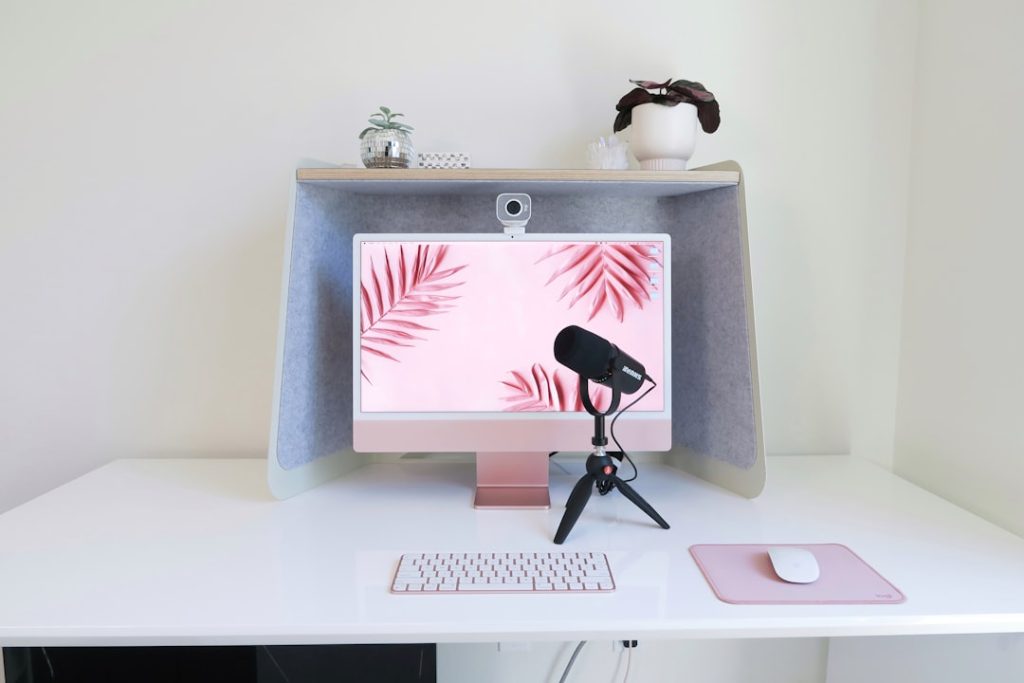
If you plan to stream or chat, choose a mic with good clarity—refer to our guide on how to choose the right microphone to match your room and budget.
Layout, mounts, and lighting: maximize space and visibility
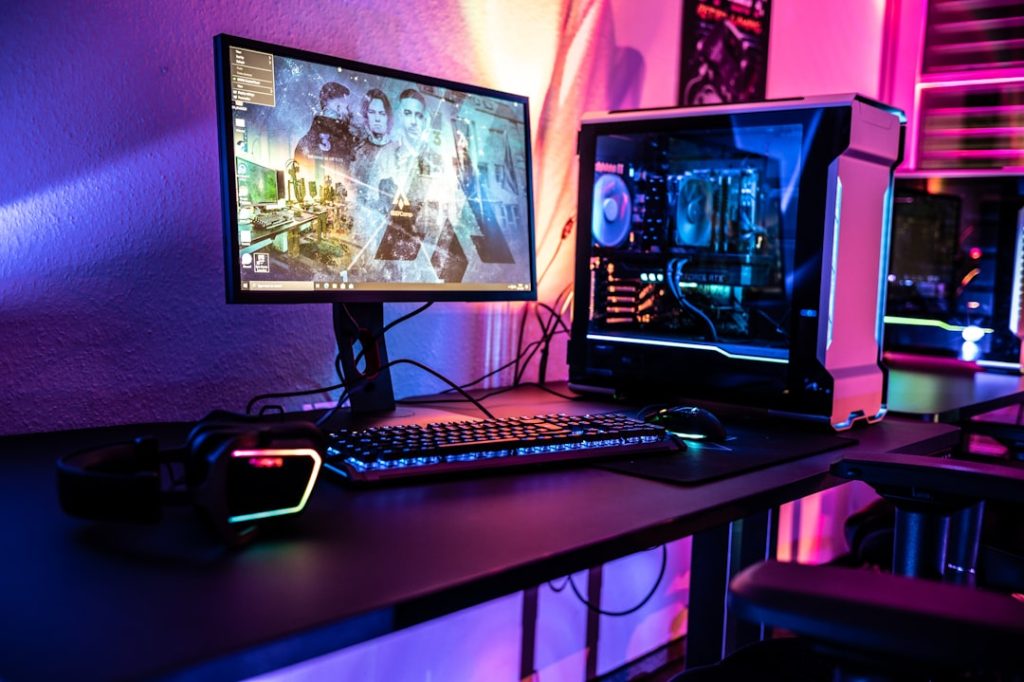
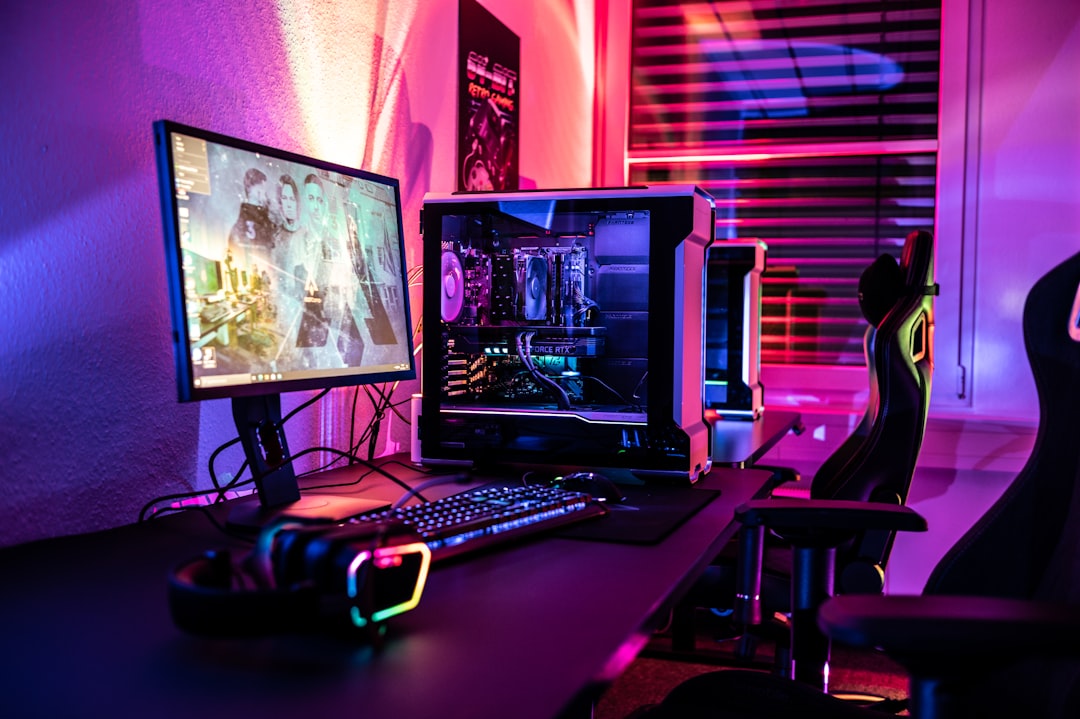
Arrange monitors so the top third sits at eye level and the primary display is centered in front of you. Use monitor arms to free desk space and improve viewing angles—this also makes VESA-mounted ultrawide or stacked monitors possible. Add focused lighting: a bias light behind the monitors reduces eye strain, while an LED strip under the desk or behind the PC adds style without blinding glare.
Networking, cables, and power: stable, tidy, safe
Prefer wired Ethernet for competitive reliability; if using Wi‑Fi, place the router close or use a gaming-grade adapter. Use a quality surge protector and ensure your power supply can handle peak draws. Plan where cables will run and label each one.
Invest in cable management: adhesive trays, Velcro straps, and an under-desk cable tray keep cables off the floor and reduce dust buildup. A tidy setup improves airflow for your PC and makes cleaning simple.
Finishing touches: software, calibration, and testing
Update GPU drivers, calibrate monitor color/brightness for the room, and run benchmark or latency tests to validate performance. Create a launcher folder for frequently played games, set your desktop to a minimal layout, and map keyboard shortcuts for streaming or voice chat. If you’ll upgrade over time, mark spare SATA/NVMe slots and leave 20–30% extra PSU headroom.
Common adjustments and troubleshooting
- Too much heat or noise: improve case airflow, add case fans, or move PC off the floor and away from walls.
- Input lag or stutters: check Ethernet or router settings, ensure drivers are current, and check background processes for disk/CPU spikes.
- Monitor color/brightness mismatches: use built-in monitor presets and software color profiles for consistency between panels.
- Limited space: stack monitors vertically, use wall shelves for speakers, and consider a compact or corner desk model.
Next steps and sensible first purchase
If you must choose one item to start after deciding platform and budget, buy a good desk that fits your measured space. The desk dictates monitor size, chair choice, and cable runs; it’s the foundation a mismatched GPU or flashy peripheral can’t fix later.
Useful internal links
For future upgrades and mic selection, see our step-by-step upgrade guide and the guide on choosing a microphone for gaming.
- Measure room and plan desk footprint and outlet locations.
- Decide platform and set a component-first budget (GPU/monitor priority).
- Choose a desk deep enough for your monitor arrangement and a supportive chair.
- Pick wired Ethernet or improve Wi‑Fi placement for low latency.
- Plan cable routes and buy a cable management tray and surge protector.
- Calibrate monitor and update drivers before long play sessions.
Building a gaming setup from scratch works best when you lock down use-case and budget first, choose core hardware (GPU/monitor) to match your goals, then buy a good desk and chair that fit the space. Treat cable management and networking as core components—small investments there yield big long-term returns.
Should I prioritize monitor or GPU first?
Pick the GPU/console target for the resolution and refresh you want, then choose a monitor that matches it to avoid performance mismatches.
Is an L-shaped desk worth the extra space?
Yes when you need a streaming area, separate work surface, or more monitor real estate; measure the room first to ensure fit.
Do I need a wired connection for gaming?
Wired Ethernet is recommended for competitive play for lower latency and more stable throughput; Wi‑Fi can work for casual play if signal strength is strong.
What’s the minimum RAM and storage?
16GB RAM is the practical minimum for modern gaming; use an NVMe SSD for OS and game installs and a larger HDD for mass storage if needed.
How do I future-proof my setup?
Choose a PSU with extra headroom, a case with good airflow and expansion bays, and a desk space that accommodates a larger monitor or additional peripherals.