 Wishlist


When you sit down to play and the controller dies: quick fixes that should have been in your setup
You’ve planned an evening of co-op, only to find the DualSense at 10% and the console tucked behind the cabinet with tangled cords. That everyday friction is what the right PS5 accessories remove. This guide explains which PS5 accessories genuinely improve daily use, how to prioritize purchases, and how to set them up so the console is cooler, controllers stay charged, storage isn’t the bottleneck, and cables don’t make the room look cluttered.
PS5 accessories to prioritize for everyday reliability
Start with the items that directly affect play: controller charging, console cooling/placement, display cabling and storage. Buy in this order unless you already have a specific pain point (for example, running out of storage mid-install).
1. Controller charging solution
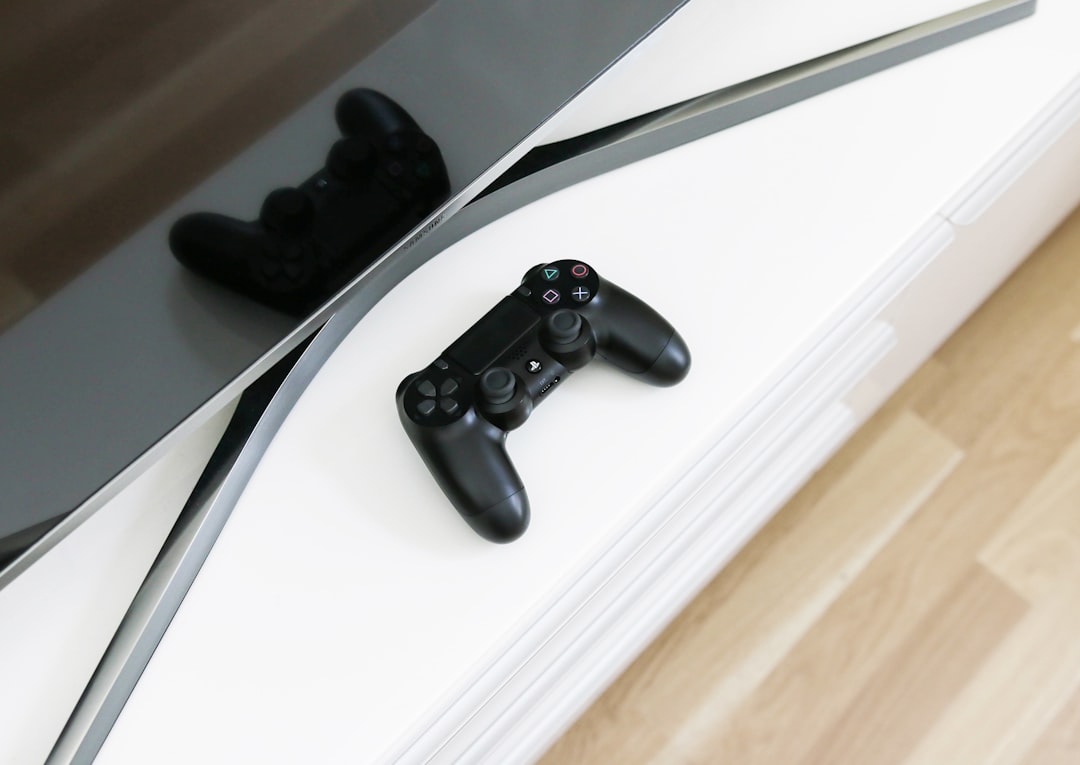
Why: DualSense batteries are excellent but will die mid-session if you don’t plan. A dedicated charger keeps two controllers ready without swapping USB cables.
- What to get: a two-controller charging dock or a USB-C dock that fits DualSense sticks snugly.
- How to use it: place the dock near your couch or on the TV stand; plug into a powered USB outlet so you can charge without using a front console port.
- Trade-offs: simpler docks are cheaper; ones with a display of charge level or fast-charging support cost more but are convenient for heavy local multiplayer.
2. Stable placement and cooling
Why: The PS5 needs space for airflow. A vertical stand or cooling station can improve ventilation and reduce risk of thermal throttling in cramped shelving.
- Stand vs shelf: If you display the PS5 vertically, use the official or an approved stand to secure it; horizontal placement needs 6–8 inches of clearance front and sides.
- Cooling add-ons: passive stands raise the console for airflow; active cooling stations add fans. Use these if your console is in an enclosed cabinet or a warm room.
If your setup traps heat—behind a TV on a closed shelf or stacked with other electronics—consider a stand that includes active cooling.
3. Better video and audio connections: HDMI 2.1 cabling and a headset
Why: To get the PS5’s feature set—120Hz on supported TVs and low-latency HDR—you’ll want a high-quality HDMI 2.1 cable and a TV or monitor that supports the relevant modes.
- Buying tip: a certified HDMI 2.1 cable from a reputable brand avoids handshakes issues with 4K/120Hz. For most players, a single cable routed from console to TV is enough.
- Headset: if you play online or want immersive sound, choose a headset with an isolated boom mic or use the DualSense’s 3.5mm jack with a wired headset.
4. Expand storage with a compatible NVMe SSD
Why: Modern titles quickly fill the internal storage; an M.2 NVMe SSD lets you install more PS5-format games. If you play many large titles, this is one of the most impactful upgrades.
- Key considerations: choose an SSD listed as compatible with PS5 (capacity and required speed vary), and remember some drives need a low-profile heatsink for thermal management.
- Installation: PS5 has a built-in expansion slot; you’ll open the console and install the SSD. Follow Sony’s formatting steps inside the console UI before moving games.
Making the setup clean: cables, power, and placement tricks
Good accessories only deliver if they’re placed and wired thoughtfully. Solve three common visual and functional problems: tangled cables, limited outlets, and blocked airflow.
- Power: use a surge-protected power strip with spaced outlets so large power bricks don’t crowd connectors. Keep the strip accessible but hidden behind furniture.
- Cable routing: adhesive cable clips and a short HDMI run (avoid excessively long cables) reduce signal issues and visible clutter.
- Mounting options: if the TV stand is small, a low-profile shelf or a wall mount for the console can improve airflow and free space; just ensure anchors are rated for the weight.
Comfort and control: audio, charging habits and controllers
Small decisions here affect how often you need to interrupt play. A headset with good mic isolation avoids yelling into the TV; an extra controller doubles local-play readiness.
- Charge habit: leave one controller on the dock and one in hand for quick swaps, or set a nightly charging routine.
- Controller extras: silicone grips, thumbstick extenders, and carry cases can protect investment; prioritize dock and spare controller first.
Troubleshooting common accessory issues
Accessory issues are usually easy to fix:
- Controller not charging: try a different dock port or connect the controller directly to the console to see whether the dock or cable is at fault.
- HDMI handshake problems: power cycle the PS5 and TV, switch HDMI ports, or use a shorter certified HDMI 2.1 cable.
- Overheating signs: if the console becomes loudly noisy or performance drops, move it away from enclosed spaces and check dust accumulation around vents.

For a wider selection of accessories that match the needs here, see our PlayStation 5 Accessories collection.
- Buy a two-controller charging dock or plan a charging station near seating.
- Confirm console placement with 6–8 inches clearance or add a cooling stand if enclosed.
- Use a certified HDMI 2.1 cable and check TV input settings (VRR/120Hz if available).
- If you need more storage, select an M.2 NVMe SSD that fits PS5 size and heat requirements.
- Route power and HDMI with clips and a surge-protected strip to reduce clutter and protect electronics.
Focus first on what interrupts play—dead controllers, overheating, poor video output, and lack of storage. A charging dock, better placement or active cooling, a certified HDMI 2.1 cable, and an SSD upgrade in that order solve the most common problems and make daily use smoother.
Do I need a special HDMI cable for the PS5?
Yes—use a certified HDMI 2.1 cable to access 4K at 120Hz and advanced features. Cheaper or older HDMI cables can limit resolution/frame-rate or cause handshake glitches.
Will a cooling stand damage the PS5?
No—reputable stands are designed to improve airflow. Avoid blocking vents and choose a stand sized for the PS5 model you own.
Can I use any NVMe SSD with the PS5?
Not any; the PS5 requires an M.2 NVMe SSD with certain speed and size specs and typically a low-profile heatsink. Check compatibility before buying.
Is a headset necessary for PS5 audio?
No—the PS5 outputs great audio through TV speakers, but a headset is helpful for private sessions or competitive multiplayer because of mic clarity and spatial sound.
How many controllers should I keep charged?
At least two if you play local multiplayer; for lone players, one on a dock and one in use avoids mid-session interruptions.