 Wishlist


What a comfortable gaming setup looks and feels like
People often assume comfort comes down to “buy a fancy chair,” but a truly comfortable gaming setup is the sum of posture, monitor and desk alignment, input devices, environment, and scheduled movement. The end result should be a space where you can play for three-plus hours without neck strain, numb fingers, or sore lower back—a comfortable gaming setup that supports alert focus and quick reactions rather than one that simply feels plush.
Start with seating and posture
Your chair is central because it controls spine support, arm position and hip angle. Aim for a seat with adjustable height, recline, and armrests you can move in three directions. Set the seat height so your knees are roughly at 90–100°, feet flat on the floor, and hips slightly higher than knees if possible—this reduces lumbar pressure. Use lumbar support (built-in or a small cushion) to maintain the natural curve in your lower back.
Adjust armrests so your elbows sit near 90° while your hands rest on the keyboard or controller. If armrests force your shoulders up, lower or remove them.
Which chair to pick? For longer sessions, prioritize adjustability and firm lumbar support over flashy padding. Big-and-tall or high-density foam options better retain shape across hours of use.
How to arrange monitors and desk for less strain
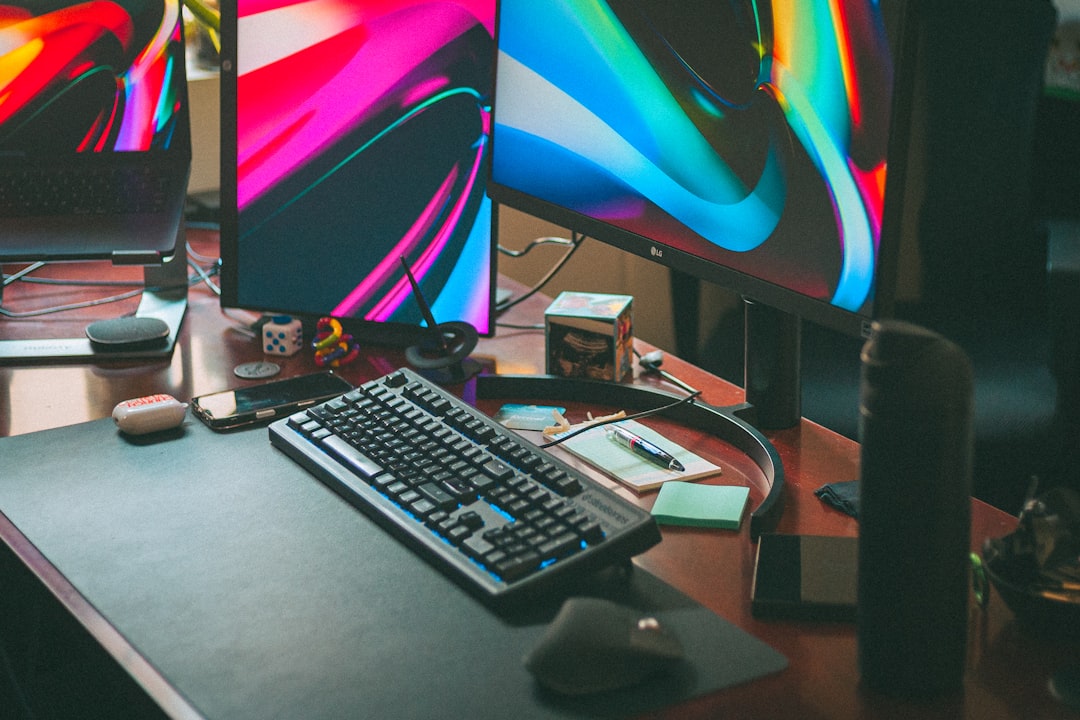
Monitor height and distance dictate neck and eye strain. Position the top third of the monitor at or just below eye level so your eyes look slightly downward at the screen. Sit about an arm's length (roughly 20–30 inches) away; increase distance for very large screens. If you use multiple monitors, angle them to form a shallow curve so you rotate your torso, not just your neck.
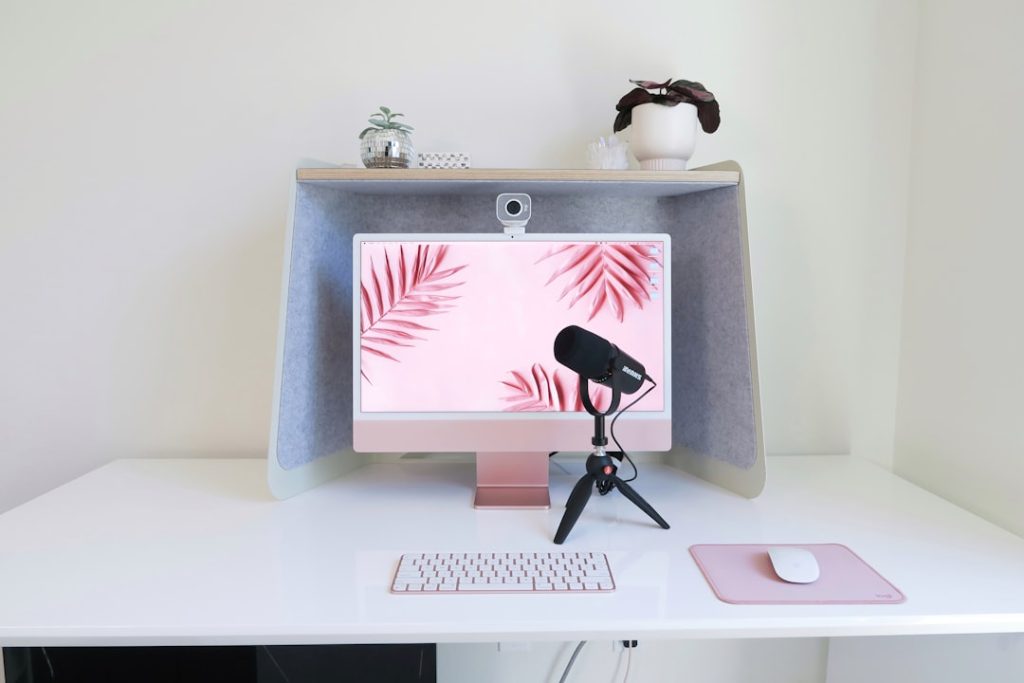
Desk height should allow your forearms to be parallel to the floor while using the keyboard and mouse. If your desk is too high, lower your chair and add a footrest; if too low, raise the monitor and consider a keyboard tray or a standing desk converter. For laptop setups, use a laptop stand plus an external keyboard and mouse to keep the screen up without hunching.
Choose peripherals that reduce micro-strain
Small mismatches—wrong mouse size, stiff switches on your keyboard, or too-small mousepads—compound over time. Pick a mouse that fits your hand so you don’t have to curl fingers. A larger, cushioned mousepad gives more room for sweeping movements and pairs well with lower DPI for smoother wrist motion.
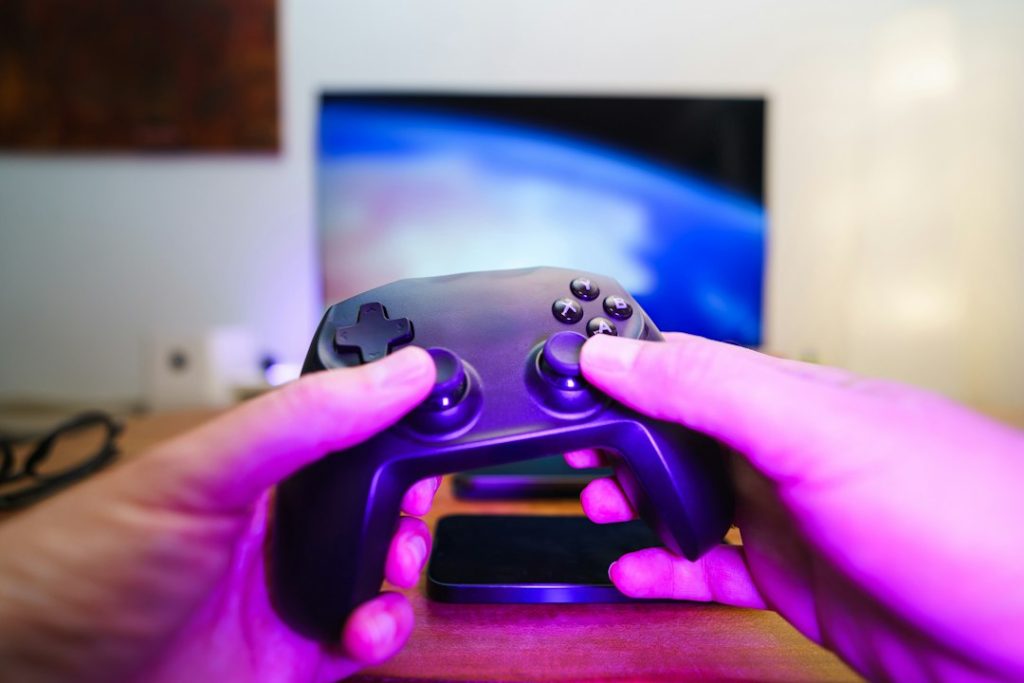
Wrist rests are useful when they keep wrists neutral during pauses; they should not be used while actively typing because they can create pressure. For controllers, soft grips and periodically switching hand positions reduce hotspots.
Control lighting, sound and temperature
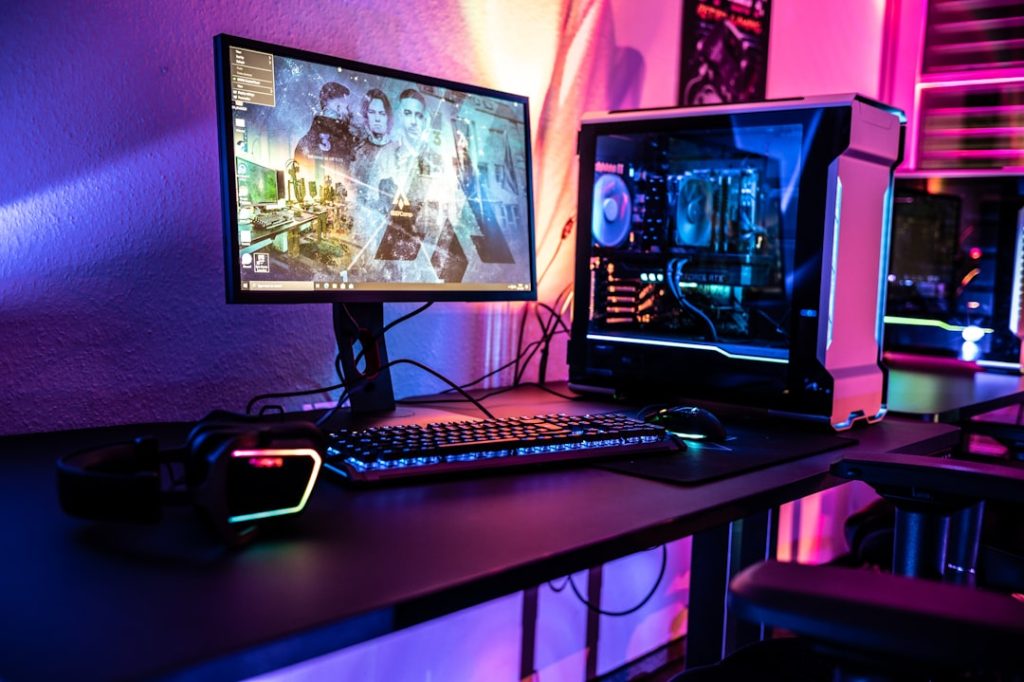
Light and temperature affect fatigue as much as chair comfort. Bias lighting (a soft light behind the monitor) reduces eye strain and improves perceived contrast without creating glare—pair this with a dim, even room light so your eyes don’t constantly adapt between bright screen and dark room. For lighting setup tips, see our guide on improving gaming lighting.
Maintain a comfortable room temperature (around 68–72°F or 20–22°C for many people) and use a quiet fan or PC fans to prevent heat buildup. If noise or chatter disturbs you, closed-back headphones or a white-noise machine can stabilize focus.
Move intentionally: breaks, micro-exercises and standing options
No setup eliminates the need to move. Use a timer (or the Pomodoro method) to force short breaks—stand and walk for 2–5 minutes every 45–60 minutes. During long sessions, do quick mobility drills: neck rotations, shoulder rolls, and hamstring stretches. If you prefer standing, rotate between sitting and standing using a sit-stand desk or converter; changing posture every 30–60 minutes reduces stiffness.
Keep cables, accessories and airflow comfortable
Clutter under your desk can trap heat and force awkward leg positions. Use a cable tray or Velcro straps to keep wires off the floor and out of the way of feet and a footrest. A clear foot area enables comfortable leg positioning and reduces contact points that cause numbness.
For laptops, a cooling pad prevents bottom heat that can make your lap or desk uncomfortably warm; for desktops, make sure intake fans aren't blocked by clutter or a closed cabinet.
Troubleshooting common comfort complaints
- Neck pain: Raise or lower the monitor so you don’t look up; check for a tilted monitor or uneven chair height.
- Wrist numbness: Switch mouse grip, lower sensitivity, add short breaks, and test an ergonomic mouse if symptoms persist.
- Lower back soreness: Increase lumbar support and check that hips aren't lower than knees; consider a seat cushion with slight forward tilt.
- Leg numbness: Remove obstructions under the desk and ensure the chair base isn’t pressing into the back of your knees.
Personalize and test for at least two weeks
Make one change at a time—new chair, different mouse, or monitor arm—and live with it for a week or two. Comfort is subjective: a very firm lumbar support helps some people and irritates others. Keep a short log (notes on pain, focus, and reaction time) to decide which changes to keep.

Small, consistent adjustments—correct monitor height, neutral wrist alignment, a stable lumbar curve, good ambient light, and planned movement—compound into a comfortable gaming setup that supports longer sessions without sacrificing performance.
- Measure and set monitor top at eye level; sit an arm’s length away.
- Adjust chair so hips are level with or slightly above knees; add lumbar support if needed.
- Choose a mouse and pad that let you move your arm, not just your wrist.
- Add bias lighting and reduce glare; control room temperature and airflow.
- Schedule short movement breaks and alternate sitting/standing if possible.
- Clear under-desk clutter so feet and cables don’t interfere with posture.
Comfort for long gaming sessions isn't a single upgrade—it's a small set of aligned changes: seating posture, monitor and desk geometry, suitable peripherals, ambient environment, and deliberate movement. Fix one major pain point first, then iterate.