 Wishlist


Picture the finished setup — and what it does for you
It’s 8 p.m., your friends are online, and you want to stream your first session: viewers can see the game, hear you clearly, and—when you want—see your reactions. A solid beginner streaming setup gets you that live, consistent experience without breaking the bank. This guide walks you from that end result back through realistic hardware, layout, software, and quick troubleshooting so you can go live reliably.
Beginner streaming setup: what you’ll actually need
Focus on five things that affect viewer experience: capture (game video), audio, face cam, lighting, and stable upload. Below is a practical priority order and specific options for each piece so you can build a functional setup in one session.
1. Decide platform, source, and budget
Are you streaming from a PC, a console (PS/Xbox/Switch), or a laptop? That choice changes capture needs and software. Set a realistic budget early: $300–$700 covers a clear webcam, a decent USB mic, and lighting; $700+ can include a dedicated streaming PC or capture card for console streaming.
2. Capture: getting the game on stream
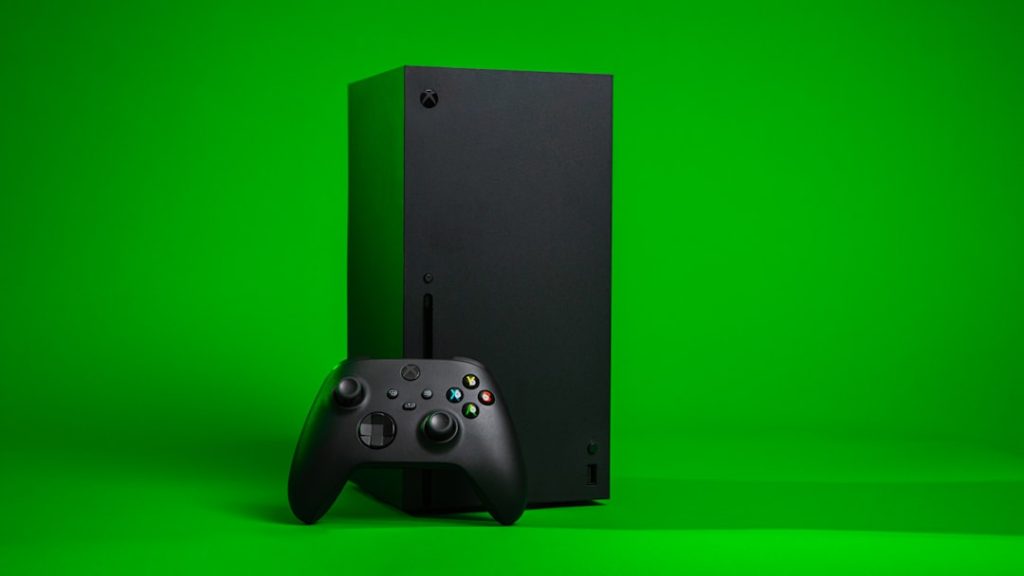
PC gamers can capture gameplay directly with OBS Studio or Streamlabs; no extra hardware is required unless you want a separate streaming PC. Console streamers should use an HDMI capture device to pipe footage into a streaming PC or laptop, or use the console’s built-in streaming for a lowest-effort option (but with fewer overlays and production controls).
If you have a weaker laptop, consider an external capture card to offload encoding to a desktop, or use a cloud-based encoder. Aim for 720p60 or 1080p30 as entry targets if your upload speed is limited (see bitrate note below).
3. Audio: prioritize microphone quality
Audio clarity matters more than a perfect webcam. A USB condenser mic or a USB/XLR interface with a dynamic mic will vastly improve your stream compared to a headset mic. If you must start cheaper, use a wired headset mic until you upgrade.
Tip: place the mic on a boom arm and use a simple pop filter or foam cover to cut plosives and room noise.
That product card links to a USB streaming microphone option that works well for beginners who want plug-and-play simplicity with clearer vocal presence than headset mics.
4. Webcam and lighting: face cam that’s watchable
A 720p or 1080p webcam mounted on your monitor is fine at first; avoid tiny, dark face cams. Light your face with a soft, diffuse source—an inexpensive ring light or small softbox positioned behind the camera keeps shadows soft and your facial expressions readable.

5. Internet: check upload speed and set bitrate
Run a speed test. Reserve about 75% of your upload for streaming so you don’t saturate the connection. Common bitrate targets: 2,500–4,000 kbps for 720p/60 or 1080p/30; drop bitrate or resolution if your connection or CPU struggles.
For 1080p30 aim for 3,500–5,000 kbps; for 720p60 aim for 3,000–4,000 kbps. Test recording locally first to spot frame drops.
How to arrange your desk, scenes, and software
Good layout and simple scenes make your stream look polished. Use OBS Studio (free) or an alternative; set up three primary scenes: gameplay (no webcam full-screen), game+cam (game with small face cam), and intermission/BRB (streaming overlay and music).
Overlays and alerts are nice but don’t overload the screen. Keep an eye on CPU/GPU usage when adding browser sources or animated overlays because these can cause dropped frames on lower-end systems.
Hardware placement and ergonomics
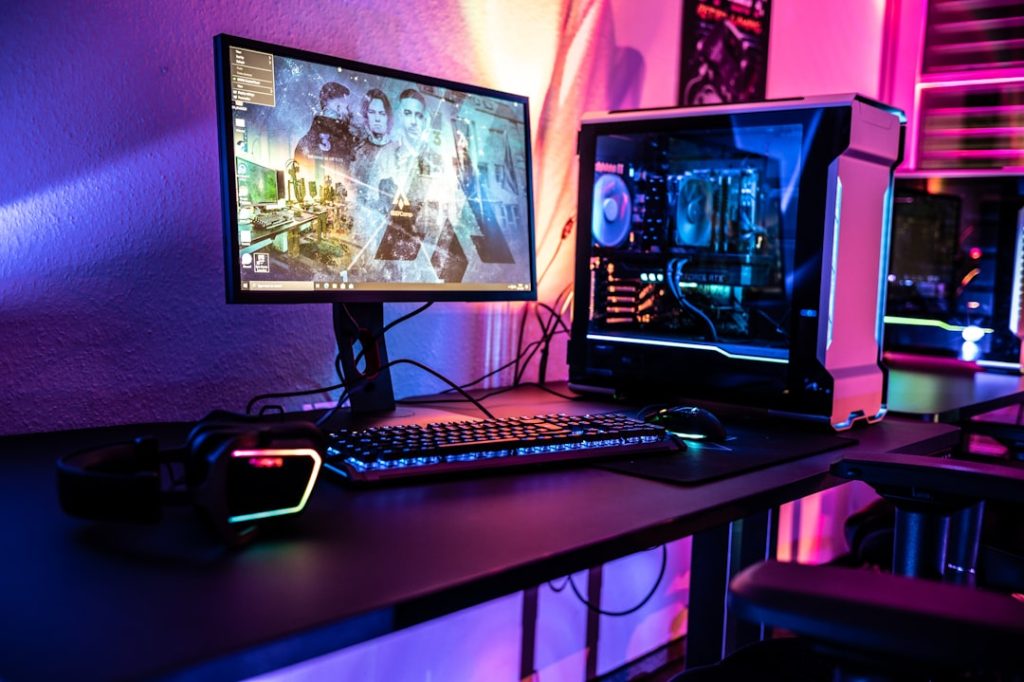
Place your webcam at eye level, mic slightly off-axis (to reduce breathing noises), and monitor(s) positioned so you can play comfortably while reading chat. Use headphones or closed-back headphones to avoid audio bleed into the mic.
Troubleshooting common first-stream problems
- Stuttering: lower bitrate, switch to single-PC encoding if using a streaming PC, or reduce in-game graphics.
- No audio captured: check OBS audio devices and Windows/macOS input/output settings; ensure mic is not muted and levels are above -18 dB.
- Webcam lag: try USB 2.0 vs 3.0 ports, close other apps using the camera, or reduce resolution.
- Dropped frames: check Network tab in OBS, reduce bitrate, or close background uploads/backups.
Simple test routine before going live
Record a 5–10 minute local test with the same scene and game settings you plan to use, then watch it back for audio sync, clipping, and visual lag. After a private test stream, ask a friend for feedback on volume and camera framing.
Small upgrades that make a big difference
Once you’re comfortable streaming, prioritize: better mic > better webcam > capture card or streaming PC > dedicated lighting > green screen. That order improves what viewers notice most: sound first, then picture quality.
Related guides that help expand this setup include essential accessories for improving comfort and cable management and step-by-step upgrades when you’re ready to expand.
- Choose streaming source: PC, console, or hybrid.
- Confirm upload speed and set a safe bitrate.
- Get a decent USB mic and basic webcam; mount and light them.
- Set up OBS scenes: gameplay, game+cam, and BRB.
- Run a local recording and a private stream for testing.
- Plan first upgrades: better mic, then camera, then capture card.
A usable beginner streaming setup focuses on clear audio, a stable capture path, and basic lighting—start small, test locally, and upgrade in order of viewer impact. You can be ready