 Wishlist


What good lighting should do for your desk right away
Well-balanced gaming setup lighting makes games look richer, reduces eye strain during long sessions and keeps your camera-friendly scenes consistent if you stream. The visible result should be even, reflection-free monitors, readable controls and a few controlled accents that bring depth to the space without creating glare.
How to plan your gaming setup lighting
Start by mapping three layers: ambient (room), task (desk/work), and accent/bias (behind monitors or under the desk). Layering gives flexibility—use bright ambient light when cleaning or working, task light for typing or reading, and accent/bias lighting for gaming atmospherics and better perceived contrast on-screen.
Quick assessment (5 minutes)
- Note where windows fall and when direct sunlight hits monitors.
- Check existing ceiling fixtures and whether they’re dimmable.
- Look for glare on the screen and shiny surfaces from current lamps.
Choose color temperature and brightness that match your goals
For most gamers the sweet spot is neutral to slightly cool: 4000–5000K for ambient light and cool-white bias lighting to increase perceived contrast. Use a warmer (2700–3000K) desk lamp if you want a relaxed reading or streaming background—mixing temperatures can work, but keep the primary light color consistent to avoid strange skin tones on camera.
Practical setup order: install ambient, then task, then bias accent
Work in that sequence so each layer complements the previous. Here’s a practical order to follow:
- Fix the ambient source—swap bulbs for a dimmable LED in the ceiling or add a floor lamp opposite the desk to fill shadows.
- Add a focused task light—an adjustable, dimmable desk lamp aimed at the keyboard area that doesn’t wash the monitor with light.
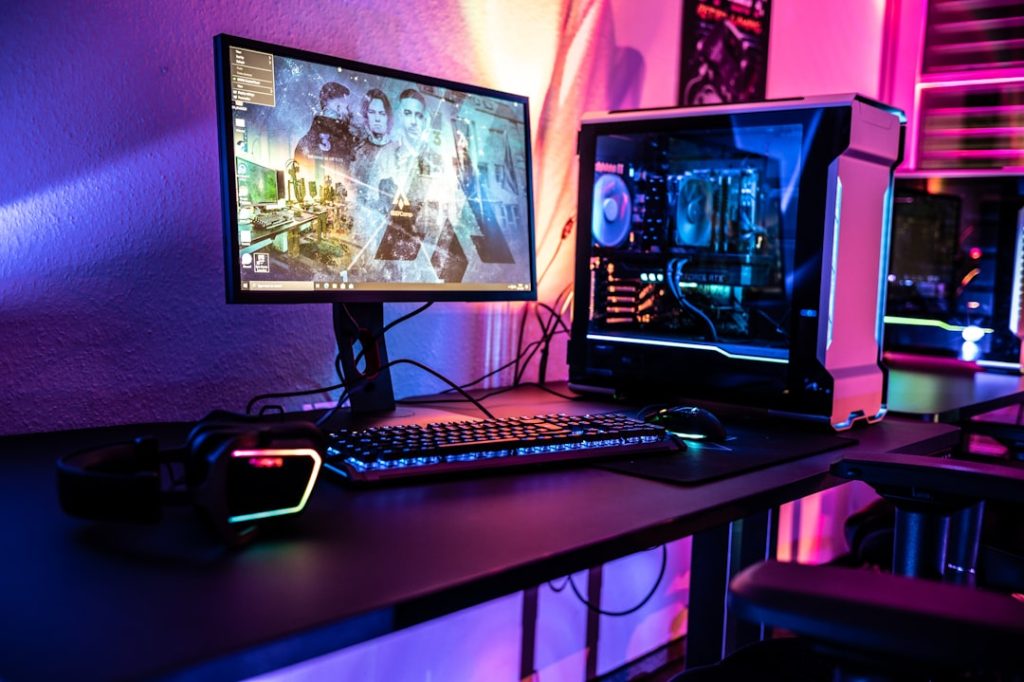
- Install monitor bias lighting—LED strips or a bias light behind the monitor to reduce eye strain and make blacks seem deeper.
- Finish with low-level accent lighting—under-desk strips, wall panels, or a light behind speakers for depth.
Bias lighting behind the monitor is especially high-impact: it increases perceived contrast and reduces pupil strain without affecting in-game brightness. Place the strip along the monitor’s top and sides, pointing at the wall, not directly at your eyes.

Choosing fixtures and placement to avoid glare
Glare is the enemy of visibility. Aim lights so they don’t reflect on glossy screens—position desk lamps to the side and slightly behind your dominant hand, and use diffusers or frosted bulbs on floor and ceiling fixtures. If you still see reflections, lower the wattage or move the lamp further back.
For ultrawide or multi-monitor rigs, separate bias strips for each screen or a long continuous strip mounted behind the center monitor works best to keep color uniform across the field of view.
Smart lighting, synchronization and control
Smart LED strips and bulbs let you create scenes—“Focus,” “Evening,” or “Stream”—and change color with your phone, keyboard hotkeys, or voice assistant. If you stream, test the camera under each scene and save the ones you like. Smart controllers also enable timers so the room automatically shifts to warmer light overnight.
The Govee smart recessed lights are a practical choice if you want app-controlled ambient and accent lighting that can sync with music or screen color. Use them as the ambient layer and pair with a bias LED strip behind your monitors for best results.
Wiring, adhesion and cable management
Keep power accessible: plan where power bricks and controllers will sit. Use adhesive cable channels under the desk or run strips along the back using mounting clips for a neater look. For a cleaner install, route the controller near a USB-powered hub if you're powering strips from the PC; otherwise, place it near a wall outlet.
If you’re concerned about adhesive failure, use 3M VHB tape or small mounting brackets instead of the strip adhesive—temperature changes can make cheap adhesives fail over time.
Troubleshooting common problems
- Uneven color on a long strip: cut and rejoin at recommended points or add a second power feed in the middle to prevent voltage drop.
- Flicker when PC sleeps or restarts: connect the strip to a dedicated power source or a powered USB hub rather than an always-off header.
- Color mismatch across devices: calibrate colors visually and choose a single color temperature for main lights; reserve RGB for accents only.
Adapting the plan for small rooms or multi-use desks
Small rooms benefit from lower overall lumen output and stronger accent lighting—use strips and wall panels instead of large floor lamps. If your desk doubles as work space, add a dimmable task lamp with a higher CRI (90+) for accurate color while you create content or edit screenshots.
For cable-heavy setups, coordinate lighting installation with cable routing strategies so controllers and power supplies are hidden but accessible.
Finishing touches and routines
Create two or three presets you actually use—bright for daytime work, dim neutral for long gaming sessions, and a color-accents scene for streaming. Program a simple routine so you don’t have to manually change multiple devices when you switch activities.
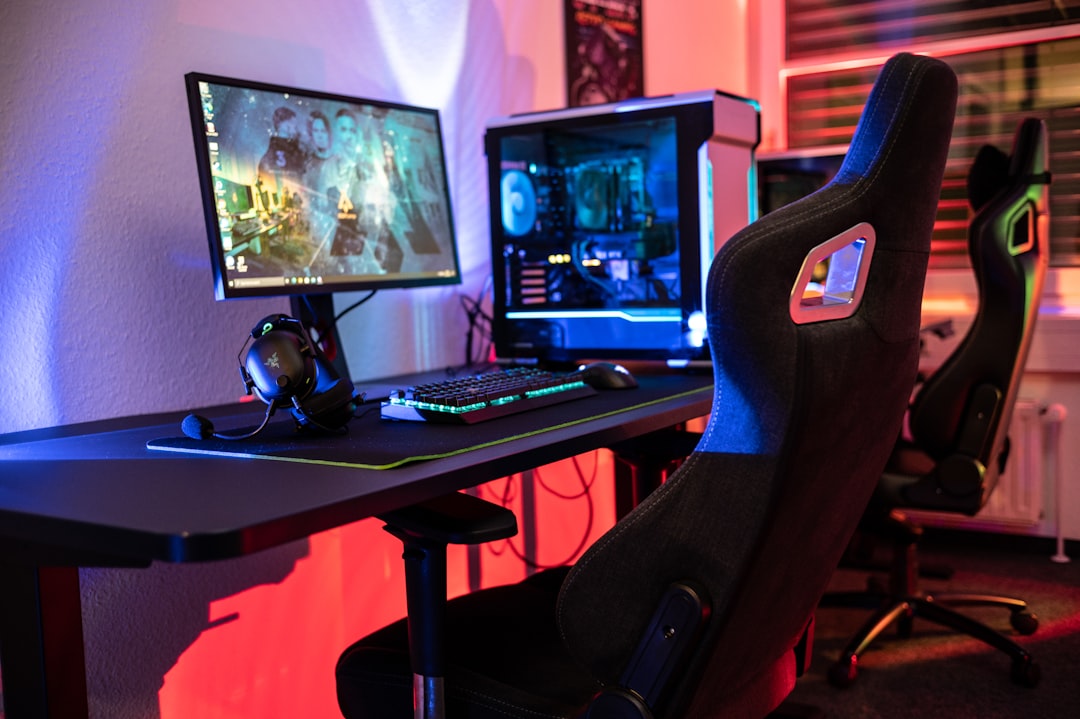
- Identify window times and test for direct glare at gaming hours.
- Install bias lighting behind monitor(s) before accents.
- Choose a primary color temperature and stick to it for ambient light.
- Use dimmable fixtures or smart controls for easy scene changes.
- Secure strips with strong adhesive or mounting clips; plan power location.
- Test scenes on camera if you stream and save presets you’ll actually use.
Balanced lighting around your gaming setup is about layering: control the room, add focused task light where you need it, and use bias/accent lighting to improve contrast and atmosphere. A small investment—dimmable bulbs and a bias strip—typically produces the biggest comfort and visual return.
How bright should my desk lights be?
Aim for 300–500 lux at the desk surface for general work; for gaming, lower the ambient to around 100–300 lux and rely on bias lighting to stabilize contrast.
Should bias lighting be white or RGB?
Neutral white (4000–5000K) is best for reducing eye strain and improving perceived contrast; RGB is fine for accent scenes but avoid colored bias lighting during competitive play.
Can I power LED strips from my PC USB?
Yes for low-power strips, but check current draw. High-brightness strips often need an external power supply to avoid overloading USB ports.
How do I avoid color mismatches between lights?
Choose fixtures from the same brand/series or pick ones that let you set exact Kelvin values; avoid mixing warm and cool as the primary ambient sources.
What if I stream—any extra tips?
Test your camera with each lighting preset and use a soft, warm fill light for flattering skin tones; avoid heavy backlight that turns your face into a silhouette.