 Wishlist

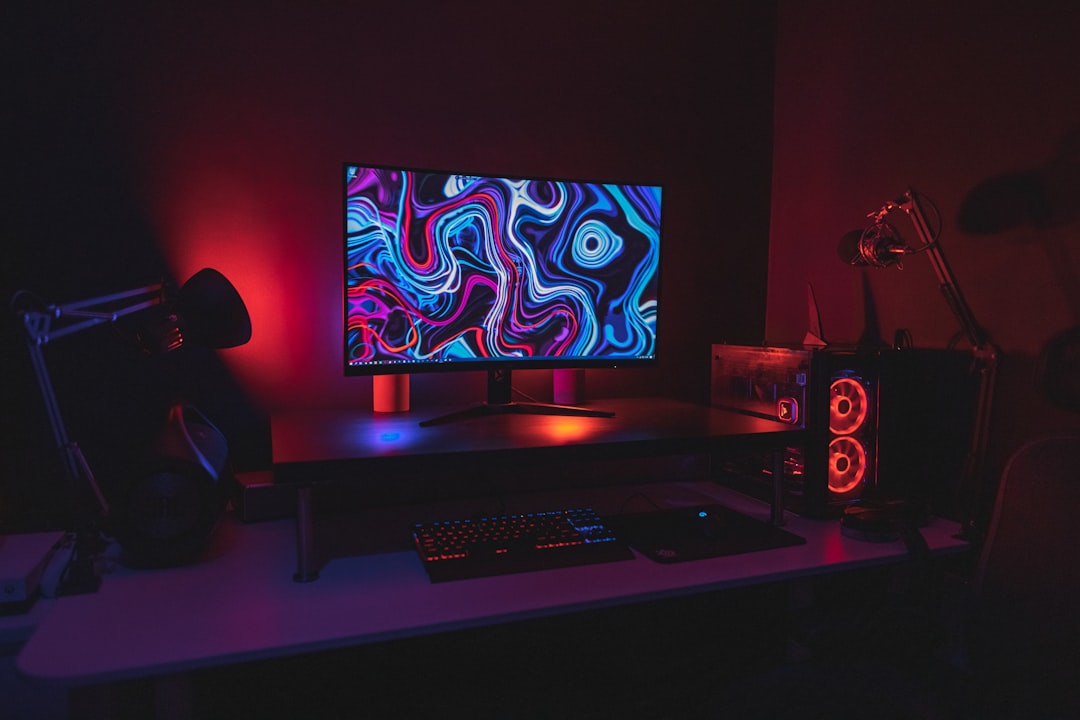
Start by deciding what matters most for how you play
Experienced buyers pick a monitor based on what they actually play and what their PC or console can drive. If you try to chase every spec—4K, 240Hz, OLED—you’ll either overspend or bottleneck your system. Before you look at models, decide whether your priority is raw competitive performance, cinematic image quality, or immersive workspace real estate.
If you’re ready to choose gaming monitor, match that decision to your hardware and playstyle: high refresh for fast shooters, high resolution for single-player worlds, ultrawide/curved for simulation and productivity. Below are the practical trade-offs and checks to make that match reliable.
How to choose gaming monitor: pick by use case
- Competitive FPS / Esports: Aim for 144Hz or higher, low input lag and a fast TN or fast IPS panel. Smaller sizes (24–27") keep pixels sharp at 1080p or 1440p and reduce head movement.
- Single-player AAA and immersion: Prefer 1440p or 4K with an IPS or VA panel for color and contrast; 34" ultrawide or curved displays add cinematic scope.
- Console-focused (PS5/Xbox Series X): If you want 4K at 120Hz, ensure HDMI 2.1 support; otherwise 1440p/120Hz or 4K/60Hz are common trade-offs.
- Creative work plus gaming: Prioritize an IPS panel with accurate color (look for factory calibration and wide color gamut) and 1440p or 4K resolution.
- Budget / mixed use: 1080p at 144Hz or 1440p at 75–144Hz offers good value; focus on pixel density that matches your desk distance.
Resolution vs. refresh rate: why one will usually win
Resolution determines image detail; refresh rate determines fluidity. Your GPU and the games you play govern which to prioritize. For example, a midrange GPU will often deliver higher framerates at 1080p than at 4K—so 144Hz 1080p can feel smoother than 60Hz 4K in fast games.
Panel types, color and response: choosing the trade-offs
Panel tech affects contrast, color accuracy and pixel response:
- TN (Twisted Nematic): Fast response and low input lag, weaker colors and viewing angles—good for competitive play on a budget.
- IPS (In-Plane Switching): Best color and viewing angles, now available with faster refresh rates; slightly slower black-to-white response than TN but far improved.
- VA (Vertical Alignment): Highest contrast and deep blacks—great for dark scenes and single-player titles, but can show slower pixel transitions at high refresh rates.
For most gamers today, a fast IPS panel is the practical sweet spot—good color, wide viewing angles and refresh rates up to 240Hz on modern models.
Size, aspect ratio and desk fit: what will actually fit and feel right
Screen size should match your desk depth and seating distance. Typical pairings:
- 24–27" — ideal for 1080p–1440p at typical desk distances; keeps pixel density high without excessive head turns.
- 27–32" — common for 1440p or 4K; gives more immersion but needs more GPU power for high framerates.
- 34" ultrawide — 3440×1440 adds horizontal workspace and immersion for racing/sim but games must support ultrawide or you’ll get pillarboxing or stretched UI.
Measure your desk and eye distance before buying. If you plan a dual- or triple-monitor layout, remember bezels and stand footprint, or opt for VESA-compatible arms.
Inputs, adaptive sync and cable compatibility
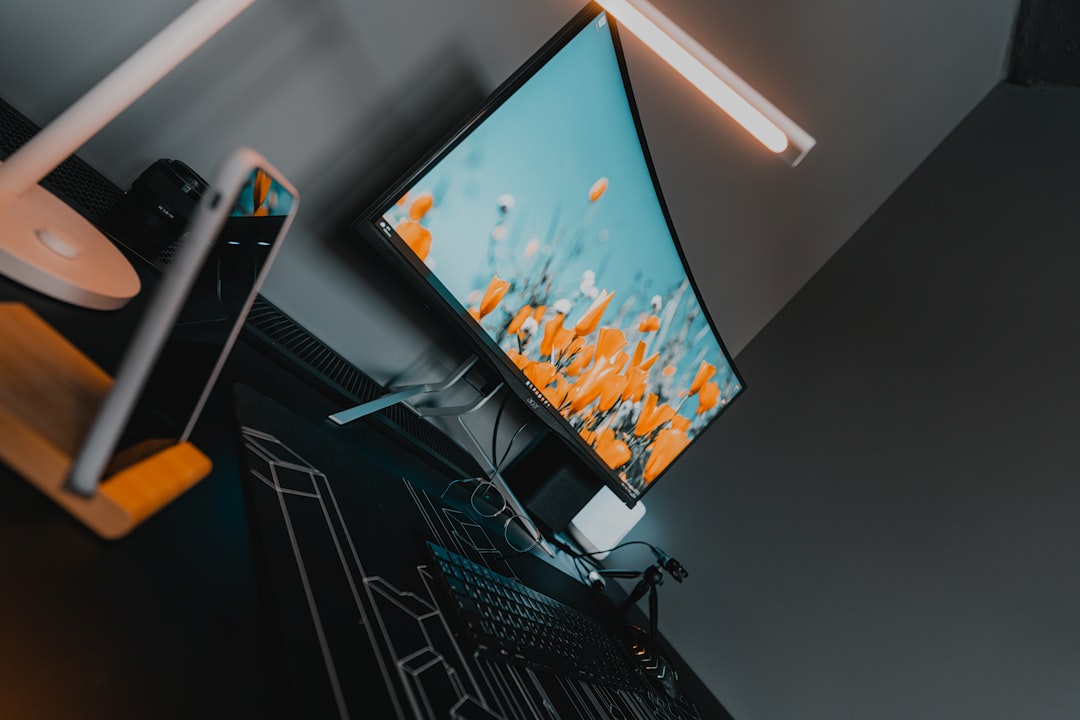
Check the ports—DisplayPort and HDMI generations limit maximum resolution and refresh. For PC high-refresh setups, DisplayPort is usually the safest choice; for next-gen consoles, look for HDMI 2.1 if you want 4K at 120Hz.
Adaptive sync tech (NVIDIA G-SYNC or AMD FreeSync) prevents tearing—choose a monitor that supports your GPU brand or offers broad FreeSync compatibility. Also check whether high-refresh modes require a specific cable or port (e.g., DP 1.4 or HDMI 2.1).
Ergonomics, stands and mounting options
Good tilt, height and swivel range matter more than many buyers expect—especially for ultrawide and larger screens. If the included stand is flimsy or you plan multi-monitor arms, pick a model with VESA mounting.
Consider an aftermarket monitor arm for better positioning and desk clearance. A solid, adjustable arm also makes ultrawide or dual setups far more comfortable.
For a reliable option that fits most setups, consider a dual/adjustable arm to support larger screens and free desk space:
For tall users or multi-monitor layouts, a full-motion arm is often the simplest ergonomic upgrade. You can browse compatible arms and mounts on the site's monitor arms category for models that match your screen size and weight.
See gaming monitor arms and mounts
Budget planning and realistic expectations
Decide how much performance you’ll actually use. A 240Hz monitor is wasted if your GPU rarely reaches 144fps; conversely, a cheap 60Hz panel will hide advantages of a high-refresh GPU. Set a budget range, then choose the best combination of resolution, refresh and panel within it.
Example budgets:
- Under $300: 1080p 144Hz or 1440p 75–144Hz; good value for competitive players.
- $300–$600: 1440p 144Hz or 4K 60Hz IPS; great for mixed gaming and content work.
- $600+: High-end 1440p/4K IPS at high refresh, ultrawide curved panels, or OLED options if available.

Final check before you buy
Quick checklist before checkout: will your GPU drive the resolution+refresh, does the monitor support your GPU’s adaptive sync, are the needed ports present, does the stand/arm fit your desk, and are return policies reasonable if the panel shows defects?
- Match resolution and refresh rate to average framerates from your GPU.
- Confirm DisplayPort or HDMI generation needed for your target mode.
- Pick a panel type that balances color vs. speed for your games.
- Measure desk depth and verify VESA mount if using an arm.
- Check warranty and return options for dead pixels or backlight issues.